.png)


Sharing a link should be easy. But anyone who has pasted a huge web address into an email, a text or an Instagram bio knows it rarely works out that way. The link looks messy, it gets cut off, and nobody wants to type it out by hand.
That's exactly why we built Gempixel. In this guide, we'll walk you through every tool on the platform and show you how to get the most out of each one, even if you've never used a link shortener before.
What Is Gempixel?
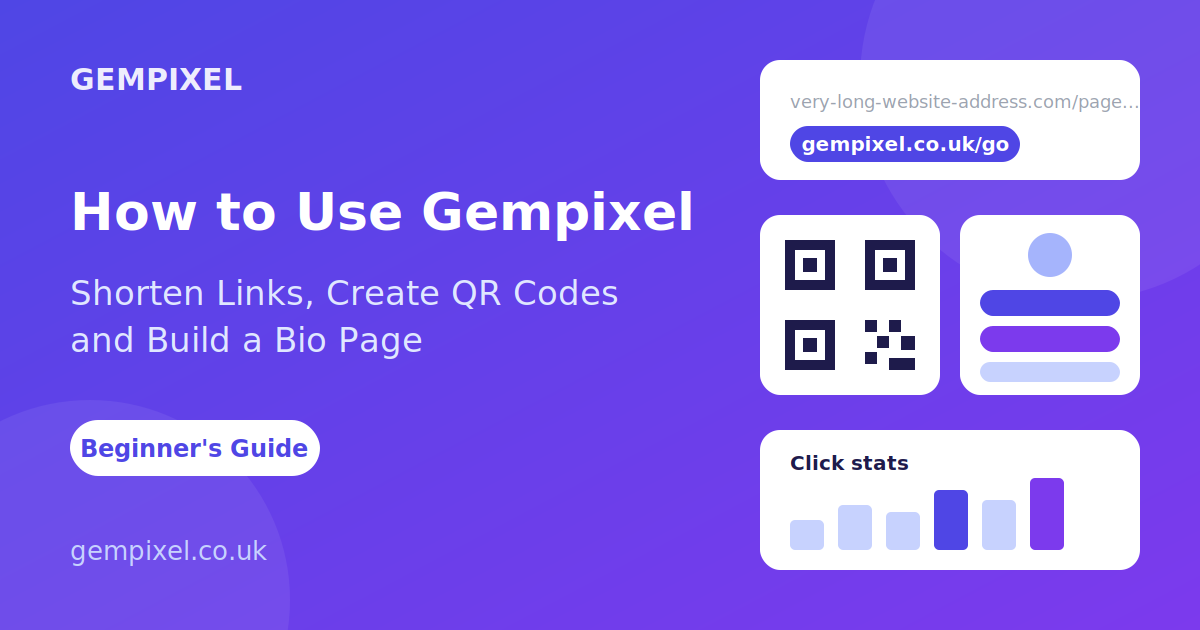
Gempixel is a free-to-start link platform that lets you shorten URLs, generate QR codes and create your own bio page. On top of that, you can see how many people click your links and where they come from. Everything lives in one dashboard, so you don't need to jump between different apps.
Want to know more about who we are? Take a look at our About page.
The Tools You Get
- Link shortener
- QR code generator
- Bio pages
- Click statistics
Let's go through them one by one.
1. How to Shorten a Link
This is the heart of Gempixel, and it takes about ten seconds.
- Copy your long link. This can be any web address, such as a blog post, a product page, a YouTube video or an online form.
- Paste it into the box on the Gempixel homepage or in your dashboard.
- Click the shorten button. Your new short link appears instantly.
- Copy and share it anywhere you like.
If you have an account, you can usually go a step further and choose a custom ending for your link, so instead of a random string of letters you get something people can actually remember. Depending on your plan, you may also find extra options like setting an expiry date or adding password protection.
When are short links useful?
- Sharing links on social media where space is limited
- Putting a clean link in an email signature
- Sending links by text message or WhatsApp
- Adding a link to a printed flyer, menu or business card
- Keeping track of which links are getting the most attention
2. How to Create a QR Code
A QR code turns your link into a small square image that anyone can scan with their phone camera. It's a great bridge between the offline world and the online one.
- Log in to your dashboard and open the QR code section.
- Enter the link or text you want the code to open.
- Adjust the look of your QR code if the options are available, such as colours and size.
- Download the image and use it wherever you like.
A quick tip: always test your QR code with your own phone before you print it. Also make sure there is enough contrast between the code and the background, because a light code on a light background can be hard to scan.
Where can you use QR codes?
- Restaurant menus and table cards
- Product packaging
- Posters, flyers and event tickets
- Business cards
- Shop windows and store displays
3. How to Build a Bio Page
If you've ever wished you could share more than one link in your social media profile, a bio page is the answer. It's a single, tidy page that holds all your important links in one place, so you only need to share one address.
- Open the bio pages section of your dashboard.
- Create a new page and give it a name.
- Add your profile picture, a short introduction and your links, such as your website, shop, social profiles or latest video.
- Save it and copy your bio page link.
- Paste that link into your Instagram, TikTok, X or YouTube profile.
Bio pages work well for content creators, small businesses, freelancers, musicians and anyone who wants their audience to find everything easily.
4. How to Track Your Clicks
Sharing a link is one thing. Knowing whether anyone is using it is another. That's where statistics come in.
Open your dashboard and select any of your links to see how it's performing. You can typically see how many clicks it has received, which countries your visitors are in, what devices they use and where they found your link.
Use this to learn what's working. If one post brings in far more clicks than another, you know what your audience likes and can do more of it.
Tips to Get Better Results
- Keep your links organised. Use clear names or custom endings so you can find them later.
- Use different links for different places. Create one short link for Instagram and another for your email newsletter, and you'll see exactly which one brings more visitors.
- Only share links you trust. Short links hide the full address, so people appreciate knowing where they lead. Be honest and clear about where you're sending them.
- Test before you share. Click your link and scan your QR code once to make sure everything works.
Frequently Asked Questions
Is Gempixel free to use?
You can get started for free. Some advanced features may be part of a paid plan, and the details are shown when you sign up.
Do short links expire?
Links stay active as long as your account is in good standing and they follow our rules. You can read those rules in our Terms of Service.
Can I use Gempixel for my business?
Yes. Lots of small businesses, freelancers and creators use short links, QR codes and bio pages to promote what they do.
What happens to my data?
We take privacy seriously and explain exactly what we collect and why in our Privacy Policy.
I found a harmful link. What should I do?
Please tell us right away through our contact page and include the link. We'll look into it as soon as we can.
Ready to Get Started?
Whether you want a cleaner link, a scannable QR code or one page for all your profiles, Gempixel makes it simple. Head to the homepage, create your first short link and see how much easier sharing can be.
Got a question or a feature you'd love to see? We'd be happy to hear from you on our contact page.